
How to Stop Overselling on WooCommerce When You Sell Across Multiple Channels or Locations
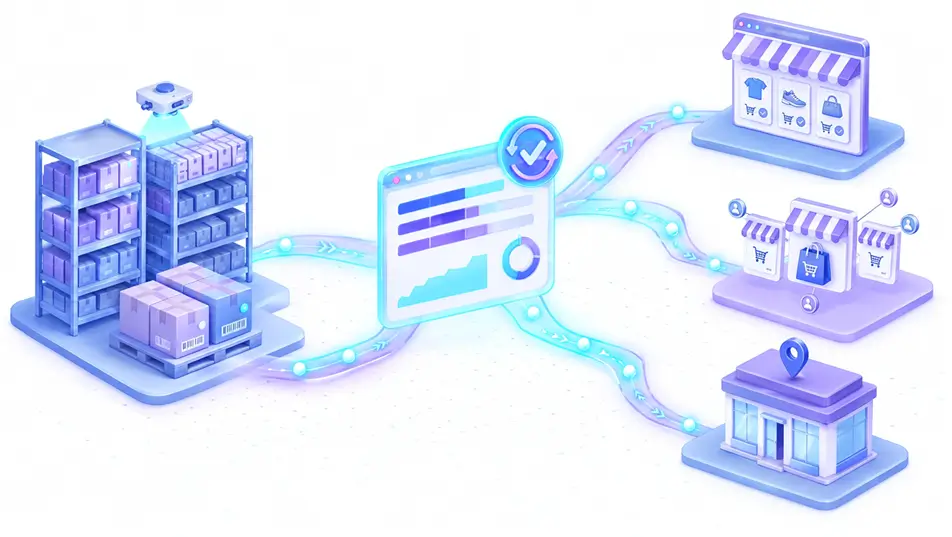
If you sell on WooCommerce and anywhere else, Amazon, eBay, a wholesale account, a physical till, you’ve probably had this moment: a customer orders the last unit of something on your website, except it already sold twenty minutes ago on Amazon. Now you’re refunding an angry customer, eating a negative review, and manually patching two systems that were never actually talking to each other.
Overselling isn’t usually a demand problem. It’s a synchronization problem. Here’s how to close the gap.
Why Multi-Channel Selling Breaks Inventory Accuracy
Every additional place you sell a product is another system that needs to know, in near real time, how many units are left. The more channels you add, the more places stock counts can drift apart:
- Your WooCommerce store, the source of truth for most merchants, but only if everything else reports back to it.
- Marketplaces like Amazon, eBay, or Etsy, which typically sync stock levels on a schedule (often every 15-60 minutes) rather than instantly.
- Point-of-sale systems for in-person sales, which may not touch your website’s database at all unless you’ve built a specific integration.
- Wholesale or B2B order sheets, frequently handled manually over email or spreadsheets.
Any one of these lag points is enough to let two customers buy the same last unit. Run three or four channels independently, and it’s not a matter of if you’ll oversell, it’s how often.
Build a Single Source of Truth
The fix starts with picking one system as the master inventory record, almost always your WooCommerce store, and making every other channel report to and read from it rather than keeping its own separate count.
Sync Frequency Matters More Than You Think
A lot of merchants set up a channel integration once and assume it’s handled. But sync frequency is where most overselling actually happens. If your marketplace feed updates stock every 30 minutes, you have a 30-minute window on every fast-moving SKU where both channels think they have inventory they don’t. For your top 10-20% of SKUs by velocity, push for near-real-time or webhook-based sync rather than a scheduled batch job. For slow movers, an hourly sync is usually fine and saves API overhead.
Set a Buffer Stock Percentage for High-Velocity SKUs
Even with tight sync, there’s always some lag between a sale happening and every channel knowing about it. A simple, effective hedge: reserve a small buffer, typically 5-10% of on-hand stock, that you don’t list as available anywhere. For a product with 40 units in stock, that means only showing 36-38 as purchasable. It costs you a handful of lost sales on paper, but it eliminates almost all oversell incidents on your best sellers, which is where a bad review does the most damage.
In WooCommerce specifically, this is easy to manage per-product: enable stock management under Product Data → Inventory, set your real stock count, then keep a separate tracking sheet (or a custom field) for your true buffer so you’re not accidentally decrementing it during manual counts.
Turn on Backorder Controls Deliberately
WooCommerce’s default backorder setting is often left on “Allow, but notify customer,” which quietly permits overselling by design. For channels where you can’t guarantee real-time stock accuracy, switch high-risk SKUs to “Do not allow” backorders so the moment stock hits zero, the buy button disables itself instead of taking an order you can’t fulfill. Reserve “Allow” only for made-to-order or pre-order items where the customer already expects a wait.
Automate the Parts a Human Shouldn’t Have to Watch
Manually checking five dashboards for stock drift doesn’t scale past a handful of SKUs, and it’s exactly the kind of repetitive, rules-based task that’s well suited to automation. This is where agentic tools are starting to change the job: instead of a person eyeballing spreadsheets, an agent can watch stock levels across channels, apply your buffer rules automatically, flag anomalies (like a SKU that sold out unusually fast), and even adjust pricing or reorder points without waiting for someone to notice. Tools like CommerceBird are built specifically to handle this kind of ongoing WooCommerce inventory and order monitoring in the background, so drift gets caught in minutes rather than discovered after a customer complains.
What to Do When You Oversell Anyway
Even a well-tuned system will oversell occasionally. Have a standard playbook ready so it doesn’t turn into a fire drill:
- Contact the affected customer within a few hours, not days, ideally before they notice a problem themselves.
- Offer a clear choice: wait for restock with a specific ETA, substitute a comparable item, or a full refund with an added discount code as goodwill.
- Log the incident with the SKU, channel, and time gap involved, patterns here tell you exactly which sync points need tightening.
A Quick Audit Checklist
If you sell on more than one channel, run through this list this week:
- Confirm which system is your actual source of truth, and that every channel writes back to it, not just reads from it.
- Check your marketplace sync interval, if it’s more than 15 minutes for top sellers, that’s your biggest exposure.
- Set a 5-10% buffer on your 20 highest-velocity SKUs.
- Review backorder settings product by product, don’t leave them on the WooCommerce default blindly.
- Write down (or automate) what happens the next time you do oversell, so the response is fast and consistent.
None of this requires new software to get started, just a deliberate look at where your systems currently disagree with each other. Close those gaps first, then decide how much of the ongoing monitoring you want to automate.